Welcome to Your New Favorite Web Clipper
You've just installed Flylighter! In the next two minutes, you'll be able to clip web pages, highlights, full articles, and more to Notion.
How to Get Started
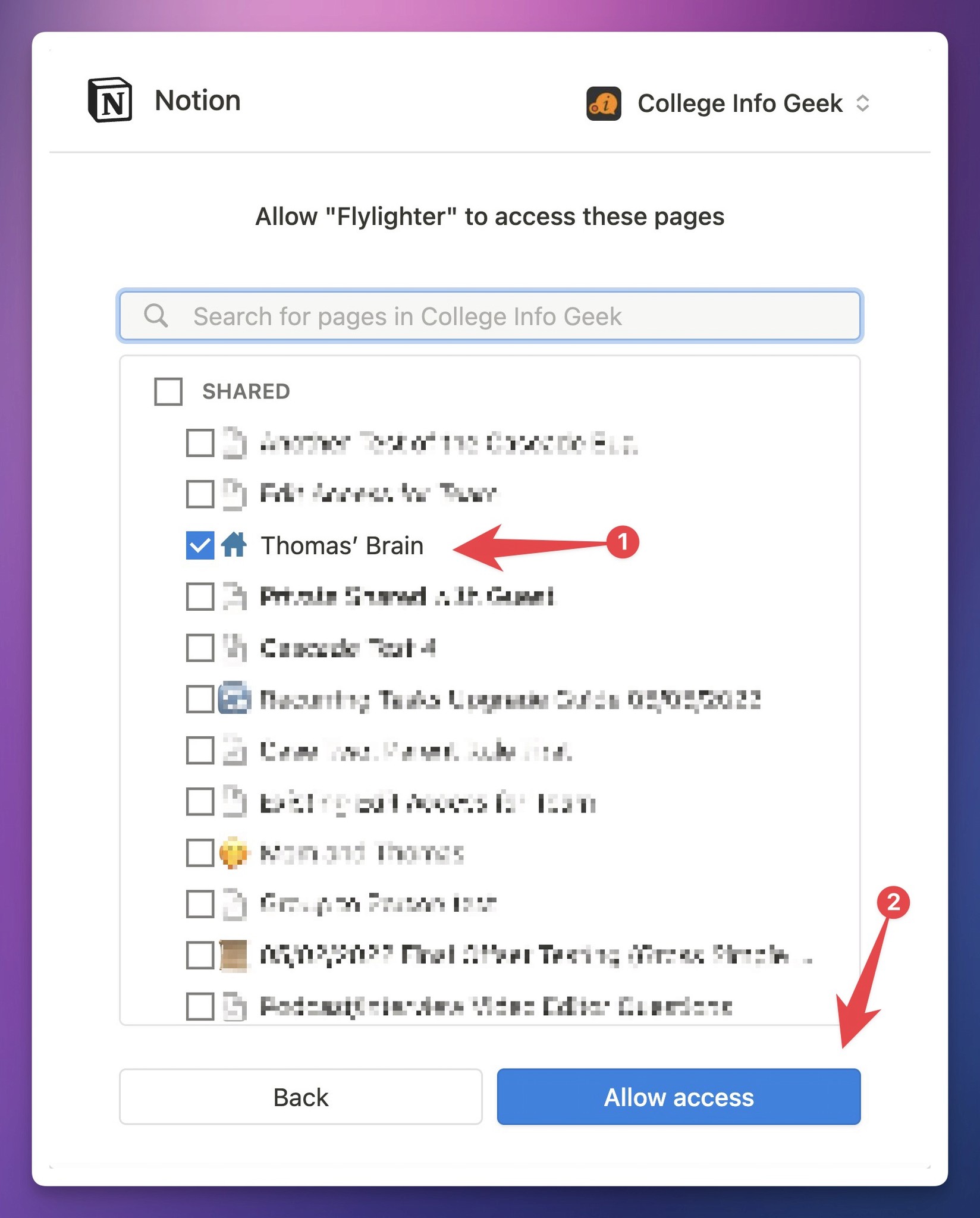
Flylighter is a capture tool for Notion, so the first thing you'll want to do is connect Notion and give Flylighter access to any database and pages you'd like to use.
Protip: If you choose a top-level page in your Notion workspace, all of the pages and database inside it will be available in Flylighter as well.
If you're using a template like Ultimate Brain, I recommend simply selecting that top-level template!
Build Your First Flow
A Flow is like a form – you can use it to capture information from the web and create new pages in Notion.
For example, you could create a Read Later Flow that captures the Title, URL, and Icon from a web page.
Every flow has a Destination – either a Notion database or page. If you select a database, you'll be able to set values for any properties in it.
You can also set properties to auto-fill anytime you run the Flow.
Try creating a new Flow – if you choose a database with a URL property, you'll notice that it's auto-filled by default! The Title and Icon will be set to auto-fill as well.
With auto-fill, you can capture new pages super quickly. And if you need, you can always override the auto-filled value on a one-time basis.
Capture Your First Highlight
Flylighter can also capture highlights – and even full articles – to Notion.
Try choosing your first Flow, then clicking the Content button. Here, you'll see the Content Editor – a block-based text editor where you can take notes, capture highlights, and bring in other items from the Web Data plugin below it.
To capture a highlight, keep the Content Editor open and try selecting some text on this page. Select it with the highlight shortcut:
- MacOS:
⌃ + ⇧ + S - Windows:
Alt + Shift + S
Once you've got everything you want in the Content Editor, hit Capture to create a new page in Notion. It'll have all the values set in the Flow's properties, plus anything you captured to the Content Editor.
Learn More with Our Docs
Flylighter has a lot more features under the hood, including:
- Instant Capture mode
- Append Mode – append new highlights to previous captures
- Customizable keyboard shortcuts
- Folders for Flow organization
You can learn more about these features by visting our docs.
Connect with Our Community
Flylighter is currently in beta, and we're working to add lots of new features and polish.
Our mission isn't just to build a Notion web clipper – it's to create a set of tools that give you the power to capture ideas and resources to any tool you're already using.
Here's a peak at what we're working on now:
- More capture destinations – Obsidian, Pipedream, Zapier, and more
- Cloud storage connections – Google Drive, Dropbox, OneDrive
- Pro features – an iOS app, Sync between devices, voice recording, and more
We'd love for you to be a part of this journey, and to hear what features and upgrades you'd like to see in the future.
If you'd like to join our community and give us feedback, here's an invite to our official Discord.
Cheers,
Thomas & Eli